Portrait Mode promises the creamy background blur of professional photos from your phone. Sometimes it delivers beautifully, but other times the results look obviously fake: strange cutouts, hair that dissolves into the background, or blur that appears where it shouldn't.
The difference between success and failure comes down to understanding how Portrait Mode actually works and setting up shots that play to its strengths.
This guide will help you recognize when Portrait Mode will work, when it won't, and how to create conditions for success. It's one of the most popular topics in our phone photography guide.
How Portrait Mode Actually Works
Portrait Mode creates background blur through computational simulation rather than optics, since your phone's small sensor and flat lens can't produce shallow depth of field the way larger cameras do naturally.
- The camera captures the scene
- Software analyzes the image to identify the subject
- Algorithms create a depth map, estimating how far away different parts of the image are
- The background (everything identified as "far") gets artificially blurred
- The subject (everything identified as "close") stays sharp
The result depends entirely on how accurately the software identifies what's subject and what's background. When it gets this right, the blur looks natural. When it gets it wrong, the effect falls apart.
Understanding this process reveals both the limitations and the keys to success.
When Portrait Mode Works Well
Portrait Mode performs best under specific conditions. Recognizing these helps you predict success.
Clear Subject-Background Separation
When your subject is obviously separate from the background, standing a few feet in front of a distant wall or landscape, the software easily identifies what to blur. The greater the physical distance between subject and background, the better.
Why it works: Clear spatial separation makes the depth map accurate.
Consistent, Simple Edges
Portrait Mode handles smooth, well-defined edges much better than complex ones. A person wearing a hat with a clean brim will produce better results than someone with wild, flyaway hair.
Why it works: The algorithm can detect and trace simple edges reliably.
Even Lighting
Uniform lighting across your subject helps the software identify edges accurately. Mixed lighting with partial shadows and spotty highlights confuses edge detection.
Why it works: Consistent lighting means consistent contrast, which aids detection.
Appropriate Distance
There's a sweet spot for Portrait Mode distance, usually between 3 and 8 feet. Too close and the lens can't focus properly for the effect. Too far and the subject becomes too small for good detection.
Why it works: The software is optimized for portrait-distance subjects.
Single Clear Subject
Portrait Mode is designed for one obvious subject. Multiple people at different distances, or a person next to objects that might be subjects, can confuse the system.
Why it works: The algorithm looks for "the subject," singular.
When Portrait Mode Fails
Knowing when it won't work saves you from disappointing results.
Complex Hair
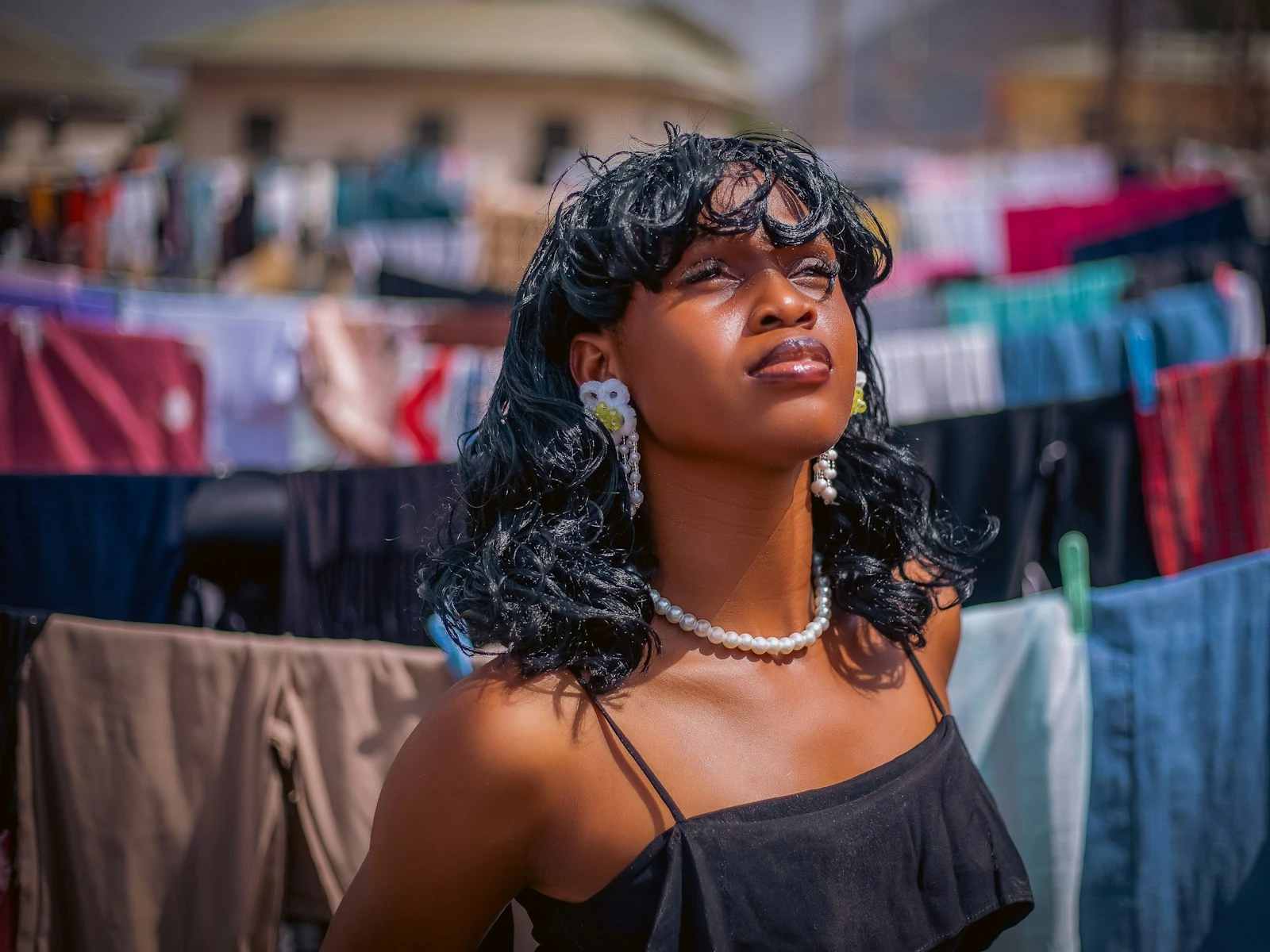
This is Portrait Mode's most consistent failure point. Fine hair, curly hair, flyaway strands, and fuzzy edges all challenge the software, which can't reliably trace these complex boundaries.
What you'll see: Hair that looks cut out, blurred inappropriately, or dissolved at the edges. Halos around the head where the blur transition looks artificial.
Glasses
Eyeglass frames and lenses create detection problems. The transparent lenses, reflections, and thin frames confuse the depth map.
What you'll see: Strange blur inside glasses, frames that partially disappear, or halos around the face.
Small or Intricate Details
Jewelry, earrings, decorative accessories, and thin straps are all vulnerable. Anything small and detailed may get incorrectly classified as background and blurred.
What you'll see: Earrings that become fuzzy blobs, thin straps that partially disappear, jewelry that loses definition.
Similar Colors to Background
If your subject's clothing or hair is similar in color to the background, the software struggles to distinguish them.
What you'll see: Parts of the subject blurred into the background, background elements staying sharp.
Busy or Textured Backgrounds
Backgrounds with lots of detail close to the subject, such as foliage, crowds, and patterned walls, make accurate edge detection difficult.
What you'll see: Background elements near the subject staying sharp while others blur, inconsistent depth blur, artifacts at edges.
Arms Extended or Off-Center Elements
Anything extending from the subject, like extended arms, objects being held, or hands on hips, often ends up at the wrong blur level.
What you'll see: Arms or hands with inconsistent blur, held objects partially sharp and partially blurred.
Multiple Subjects at Different Distances
The software wants to identify one subject. Two people standing at different distances creates confusion about what should be sharp.
What you'll see: One person blurred, inconsistent depth between subjects, strange transitions.
Setting Up for Portrait Mode Success
Given these limitations, here's how to create conditions for good results.
Position Your Subject Carefully
Distance from background: Get your subject at least 6-8 feet from the background when possible. The farther, the better.
Distance from camera: Follow your phone's prompts. Most Portrait Modes work best in a specific range, and the camera will tell you if you're too close or far.
Centered composition: Keep your subject clearly in the frame area where Portrait Mode focuses.
Optimize the Edges
Hair management: Pull hair back, use a hat, or accept that some hair edge weirdness is inevitable.
Remove glasses for important shots: If glasses cause problems, consider removing them if the situation allows.
Simple clothing: Avoid thin straps, complex textures, and clothing that closely matches the background color.
Arms down or tucked: Avoid extended arms or poses that create complex outlines.
Choose the Right Background
Distance matters most: A faraway background almost always produces better blur than a close one.
Uniform is better: Solid colors, even textures, and consistent lighting make for better results.
Avoid similar colors to subject: Contrast between subject and background aids detection.
Watch for bright spots: Very bright areas behind your subject can create halos and detection problems.
Get the Lighting Right
Soft, even light: Front or side lighting that's diffused produces the best results. Lighting fundamentals explains why soft light flatters faces.
Avoid backlighting: Strong backlight creates edge detection problems and can cause halos.
Consistent light: Make sure your subject and background aren't in dramatically different lighting conditions.
Portrait Mode vs. Natural Background Blur
Understanding the difference helps set realistic expectations.
Optical blur (real cameras): Falls off gradually based on actual physics. Every part of the image is at its correct blur level based on true distance, and transitions are smooth and natural.
Computational blur (Portrait Mode): Binary classification, either sharp subject or blurred background, with algorithmic transitions between them. The blur level is applied uniformly rather than varying with true distance.
This is why Portrait Mode blur sometimes looks "fake." It doesn't actually respond to depth the way optical blur does. Areas at slightly different distances get the same blur treatment, and the transition between sharp and blurred is an algorithmic decision, not a physical one.
For most casual use, this doesn't matter. The results look pleasing in most situations. But for critical portraits or when examining images closely, the computational nature becomes apparent.
Adjusting Portrait Mode Settings
Most phones offer controls that help refine Portrait Mode results.
Blur Intensity
Many phones let you adjust how strong the background blur is, either when shooting or in editing afterward.
Less blur usually looks more natural and hides edge detection problems. Very strong blur makes artifacts more obvious.
Start with moderate blur. You can always increase it later if you want more separation, but backing off is easier than adding more.
Lighting Effects
Some phones offer "studio lighting" effects that reshape light on your subject's face. These can look impressive or obviously artificial depending on the original lighting and your subject.
When they help: Adding dimension to flat-lit portraits, creating drama.
When they hurt: Faces can look processed or CGI-like. Effects don't always follow face contours accurately.
Experiment, but be willing to turn effects off if they look unnatural.
Focus Point
Tap to ensure focus is on your subject's face or eyes. Portrait Mode needs accurate focus to work properly, and auto-detection sometimes focuses on the wrong element.
When to Skip Portrait Mode
Sometimes the better choice is no Portrait Mode at all.
Group photos: Multiple people at various distances confuse the system. Regular photo mode shows everyone clearly.
Complex scenes: When there's no clear subject-background separation, the effect tends to look awkward.
Very close portraits: Extreme close-ups often work better without artificial blur. The face fills the frame, making background blur less important.
Documentary or environmental portraits: Sometimes the background context matters, and Portrait Mode eliminates information that tells the story.
When detection is failing: If the preview shows obvious problems, switch to regular mode rather than hoping it fixes itself. Strong composition can create subject-background separation without artificial blur.
You can often add subtle blur in editing afterward with more control than Portrait Mode provides, and without the edge detection issues.
Post-Capture Editing
If you shot in Portrait Mode, many phones allow adjustments afterward.
Reduce blur intensity: Often the most valuable adjustment. Backing off the blur can make edge problems less obvious.
Adjust focus point: Some phones let you change what's treated as the subject after capture.
Remove Portrait Mode entirely: Most phones let you revert to the non-blurred version if the effect isn't working.
Crop to hide problem edges: If edge detection failed in certain areas, cropping them out of the frame might save the shot.
Practical Guidelines
Before shooting in Portrait Mode, ask yourself:
- Is my subject clearly separated from the background?
- Does my subject have simple, well-defined edges?
- Is the lighting even across my subject?
- Am I at the right distance?
- Is there a single, clear subject?
If the answer to most of these is yes, Portrait Mode will likely work well. If several are no, consider whether regular photo mode might produce better results.
During shooting:
- Follow your phone's distance prompts
- Tap to ensure focus is on the eyes or face
- Review the preview. If it looks wrong, it probably is
- Take multiple shots with slight adjustments
After capture:
- Check edges carefully, especially around hair
- Reduce blur if edge problems are visible
- Don't be afraid to use the non-Portrait version instead
Frequently Asked Questions
Why does Portrait Mode work better on some phones?
Better algorithms, more sophisticated depth sensing (some phones use dual cameras or LIDAR sensors), and more processing power all contribute. Newer phones generally produce more accurate results.
Can I fix bad Portrait Mode photos in editing?
Sometimes. You can reduce blur to hide edge problems, or revert to the non-blurred version. You can't fix detail that was already lost to bad edge detection.
Is Portrait Mode better for pets?
It can work, but pets often have the complex fur edges that challenge the algorithms. Dogs and cats with distinct coloring that contrasts with the background work better than those with complex, multicolored fur.
Should I use Portrait Mode for professional headshots?
It can work. The phone headshots guide covers specific setup, lighting, and posing recommendations.
Key Takeaways
- Portrait Mode works best with clear subject separation from the background, good lighting, and simple edges (avoid wispy hair, intricate shapes, or transparent objects).
- Stand at the distance the camera suggests (typically 2-8 feet) for the depth mapping to work accurately.
- Check the edges of your subject carefully for blur artifacts, especially around hair, glasses, and arms that extend from the body.
- Use Portrait Mode intentionally for clear single subjects against distinct backgrounds, and switch to regular mode when the scene is too complex for accurate depth mapping.
More in This Guide
Continue improving your phone photography.