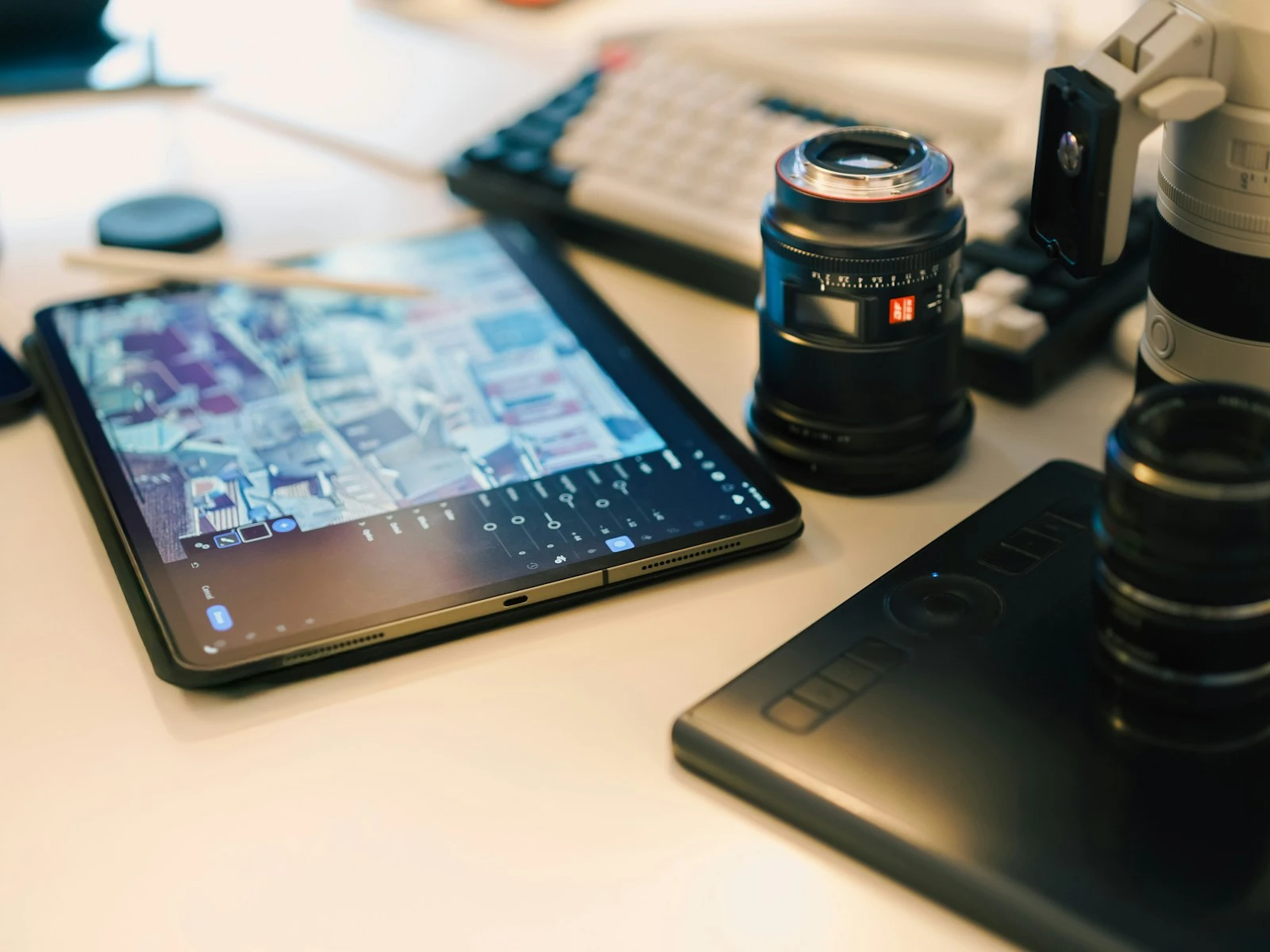
Lightroom has over a hundred adjustment sliders. Most tutorials try to explain all of them, which leaves you overwhelmed and unsure where to focus.
About ten sliders do 90% of the work. The rest are for specialized situations that most photographers rarely encounter. Learn the essential ones deeply, and you'll edit better than people who superficially know them all.
This guide separates what matters from what you can safely ignore, and it's one of the most referenced articles in our photo editing guide.
The Essential Ten
These sliders appear in almost every edit. Master them first.
1. Exposure
What it does: Uniformly brightens or darkens the entire image. This is like adjusting your camera's exposure after the fact.
When to use it: Almost every photo needs some Exposure adjustment. Even well-exposed images often need +0.2 to +0.5 to account for the difference between how cameras and eyes perceive brightness.
How much: Typical adjustments range from -1.0 to +1.5. Going beyond +2.0 suggests the original was significantly underexposed. Recovery is possible but quality may suffer, especially if you were shooting at high ISO.
Common mistake: Ignoring Exposure and trying to brighten with other sliders. Exposure should be your first move for overall brightness, especially when recovering dark photos.
2. Highlights
What it does: Targets only the bright areas of your image. Pulling left recovers detail in bright areas; pushing right makes brights brighter.
When to use it: When bright areas are too bright (blown out sky, white clothing losing detail) or when the bright areas look dull and need more pop.
How much: -30 to -70 is common for recovery. Don't pull to -100 unless necessary, since it can look flat and unnatural.
Common mistake: Thinking Highlights affects the overall image. It's targeted. If your whole image is too bright, use Exposure instead.
3. Shadows
What it does: Targets only the dark areas. Pushing right reveals hidden detail in shadows; pulling left makes darks darker.
When to use it: When faces or details are lost in shadow. When you need to open up dark areas without affecting the whole image.
How much: +20 to +50 is typical. Heavy shadow recovery (+70 to +100) often reveals noise and can look flat. Use sparingly.
Common mistake: Using Shadows as a global brightening tool. Pushing it too far creates that washed-out HDR look where nothing feels truly dark.
4. Whites
What it does: Sets the white point, the brightest value in your image.
When to use it: To ensure your image has a true bright point, or to control how bright the brightest areas get.
How much: Often small adjustments (+5 to +15). Hold Alt/Option while dragging to see clipping. Areas showing color have lost detail.
Common mistake: Confusing Whites with Highlights. Whites sets the ceiling; Highlights adjusts everything below that ceiling.
5. Blacks
What it does: Sets the black point, the darkest value in your image.
When to use it: To ensure your image has true depth, or to recover shadow detail at the very darkest end.
How much: Often small adjustments (-5 to -20). Pull down to add depth; push up if you want a faded, matte look.
Common mistake: Never touching Blacks. Many photos lack punch because they have no true black. Even a small negative adjustment adds depth.
6. Contrast
What it does: Makes lights lighter and darks darker simultaneously. Increases tonal separation.
When to use it: Most photos benefit from some contrast. RAW files especially tend to look flat without it.
How much: +10 to +25 for subtle punch. Above +30 starts getting dramatic. Portraits often need less than landscapes.
Common mistake: Over-relying on Contrast instead of using Highlights/Shadows/Whites/Blacks individually. The dedicated sliders give you more control.
7. White Balance (Temperature)
What it does: Shifts all colors from cool (blue) to warm (yellow). Corrects color casts from lighting.
When to use it: When the overall image looks too blue (shade, overcast) or too orange (tungsten light, golden hour). Also used creatively to set mood.
How much: Depends on the problem. Small adjustments (100-300K) for minor tweaks; larger adjustments (500K+) for significant color casts.
Common mistake: Not adjusting white balance first. Everything else builds on this foundation.
8. Tint
What it does: Shifts colors from green to magenta. Usually used alongside Temperature to fine-tune white balance.
When to use it: For green casts (common with fluorescent lighting) or magenta casts. Less frequently needed than Temperature.
How much: Smaller moves than Temperature. +10 to +30 usually handles most problems.
Common mistake: Ignoring Tint when colors still look wrong after adjusting Temperature. If you've fixed blue/orange but something's still off, check Tint.
9. Vibrance
What it does: Intelligently boosts muted colors while protecting already-saturated areas and skin tones.
When to use it: When colors need more life but you don't want to affect skin or create oversaturated areas.
How much: +10 to +25 is typical. Vibrance is more forgiving than Saturation, so you can push it further without things getting garish.
Common mistake: Using Saturation instead. Vibrance is almost always the better choice.
10. Clarity
What it does: Increases mid-tone contrast, adding definition and texture. Makes images feel "punchy" or "gritty."
When to use it: Landscapes, architecture, texture-focused images. Use cautiously on portraits.
How much: +10 to +20 for subtle definition. Above +30 starts looking harsh. Negative Clarity creates a dreamy, soft look.
Common mistake: Using too much. Clarity is the primary driver of the overprocessed look.
The Useful-Sometimes Sliders
These matter for specific situations, so learn them after mastering the essentials.
Dehaze
What it does: Cuts through atmospheric haze, fog, or smoke. Also adds contrast and saturation.
When to use it: Distant landscapes, shots through windows, foggy scenes.
Caution: Powerful but easy to overdo. +10 to +20 handles most haze. Higher values can look unnatural.
Texture
What it does: Enhances fine detail and texture without affecting edges as dramatically as Clarity.
When to use it: When you want texture emphasis without the harshness of Clarity. Good for fabrics, landscapes, macro shots.
Note: Newer than Clarity and often a better choice for similar effects.
Sharpening (Amount)
What it does: Enhances edge contrast to make images appear sharper.
When to use it: Lightroom applies default sharpening. Increase for images that look soft; decrease for intentionally soft looks.
Caution: Always check at 100% zoom. Over-sharpening creates ugly halos.
Noise Reduction (Luminance)
What it does: Smooths grain in high-ISO images.
When to use it: Photos shot at ISO 1600+, or any low light image where grain distracts from the subject.
Caution: Noise reduction softens the image. Find the balance between acceptable noise and acceptable softness.
The Safely-Ignore-for-Now Sliders
These exist for advanced or specialized work. Don't worry about them as a beginner.
Saturation
Why skip it: Vibrance does essentially the same thing but smarter. Saturation affects all colors equally, making it easy to create garish results.
Tone Curve
Why skip it: Powerful but complex. The basic sliders achieve most of what Tone Curve can do, more intuitively. Learn it later for fine control.
HSL Sliders (all of them)
Why skip it initially: Very useful for targeted color work, but you can edit hundreds of photos without needing them. Come back when you have specific color problems to solve.
Split Toning / Color Grading
Why skip it: Creates stylized looks by adding color to highlights and shadows. Fun, but not fundamental. A preset handles this better while you're learning.
Lens Corrections (manual)
Why skip it: The automatic profile correction handles 99% of cases. Manual controls are for when profiles don't exist or you need specific corrections.
Detail Panel (beyond Amount and Luminance)
Why skip it: Masking, Radius, and Detail refine sharpening behavior but rarely need adjustment. Default settings work for most images.
How the Essential Sliders Work Together
Understanding relationships between sliders helps you edit more intentionally.
Exposure affects everything, other sliders refine. Use Exposure to get in the ballpark, then Highlights/Shadows/Whites/Blacks to fine-tune specific tonal regions.
Contrast overlaps with Highlights/Shadows. Boosting Contrast is like pulling Highlights up and pushing Shadows down simultaneously. If you want more control, skip Contrast and use the individual sliders.
Temperature and Tint work together for white balance. Temperature handles the blue-orange axis. Tint handles green-magenta. Most white balance problems are Temperature issues.
Vibrance protects what Saturation doesn't. Saturation cranks everything. Vibrance is smart about skin tones and already-saturated colors.
Clarity and Texture both add punch, differently. Clarity affects contrast at edges (can create halos). Texture affects fine detail without edge emphasis. Often Texture is the better choice.
A Practical Editing Sequence
- White Balance (Temperature, Tint). Set your color foundation
- Exposure. Get overall brightness right
- Highlights/Shadows. Recover detail where needed
- Whites/Blacks. Set your tonal endpoints
- Contrast. Add punch if needed
- Vibrance. Boost colors if needed
- Clarity or Texture. Add definition if appropriate
- Sharpening/Noise Reduction. Final refinements
This order prevents wasted effort. Each step builds on the previous one.
Key Takeaways
- About ten sliders do 90% of the work: Exposure, Highlights, Shadows, Whites, Blacks, Contrast, Temperature, Tint, Vibrance, and Clarity.
- Always adjust white balance first since everything else builds on that color foundation, then work through exposure adjustments in order.
- Use Vibrance instead of Saturation for color boosting, because Vibrance protects skin tones and already-saturated areas from going garish.
- Keep Clarity low on portraits (often zero) and moderate on landscapes (+15 to +30), since over-applied Clarity is the primary driver of the overprocessed look.
More in This Guide
Continue exploring editing techniques.